iPhone 3GS
Instructions for MAC
Firmware 4.0.2 Jailbreak / Unlock
Step 1: Download and install the latest version of iTunes.
Step 2: Now start iTunes and sync your iPhone with your PC or Mac so that it backs-up all your important data including settings, apps, music, contacts and photos.
Step 3: Download PwnageTool (http://www.megaupload.com/?d=63NSJXYL) and the original iOS 4.0.2 for your version of iPhone (download link given below). Move all these files to your desktop.
Step 4: Start PwnageTool and select your device:
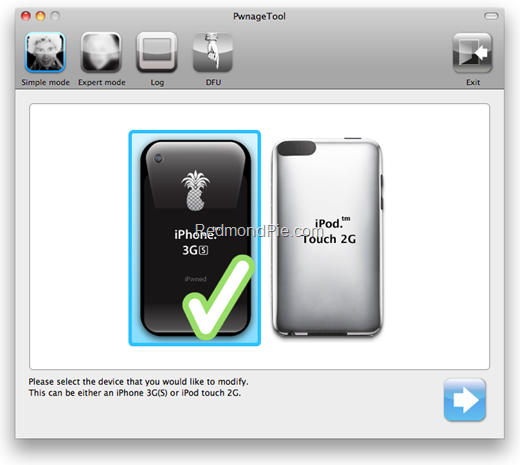
Step 5: PwnageTool will now automatically detect the correct firmware for your device as shown in the screenshot below:

Step 6: Click on "No" when PwnageTool asks you “Do you have an iPhone contract that would activate normally through iTunes?”:

Clicking on “Yes” will update your baseband to the latest version. Click on “Yes” only if you are on an officially supported carrier like AT&T.
Step 7: PwnageTool will now create the custom .ipsw file for your iPhone which will be jailbroken.
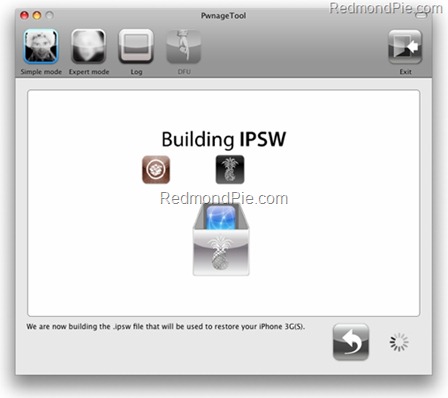
The following “ihaz Success” screen will confirm that the requested .ipsw file has been created successfully.

Step 8: Once the .ipsw file has been created, you will now have to restore your iPhone to this custom firmware 4.0.2 that you just cooked using PwnageTool for your iPhone. Click on your phone icon from the sidebar in iTunes. Now press and hold left “alt” button (“Shift” button on Windows) on the keyboard and then click on “Restore” (Not “Update” or “Check for Update”) button in the iTunes and then release the “Shift” button.
This will make iTunes prompt you to select the location for your custom firmware 4.0.2 file. Select the required custom .ipsw file and click on “Open”.
Step 9: Now sit back and enjoy as iTunes does the rest for you. This will involve a series of automated steps. Be patient at this stage and don’t do anything silly. Just wait while iTunes installs the new firmware 4.0.2 on your iPhone. Your iPhone screen at this point will be showing a progress bar indicating installation progress. After the installation is done, iPhone will restart automatically and you should now have a fully jailbroken iPhone running on iOS 4.0.2.
In case the Cydia icon on the homescreen is in white with no repositories added, simply add http://apt.saurik.com/cydia-3.7 repo in Cydia to get going!
Step 10: Once your iPhone is jailbroken, start “Cydia” application on your iPhone and touch on “Manage” tab on the bottom. Now touch on “Sources” as seen in the screenshot below:
Note: T-Mobile users should disable 3G internet before installing ultrasn0w.

Step 11: Touch on “Edit” and then on “Add”. You will be prompted to enter a url source as seen in the screenshot below. Type “http://repo666.ultrasn0w.com” and touch on “Add Source”.

Cydia will now automatically update your sources by following a series of automated steps.
Step 12: Once the repository has been added successfully, Search for “ultrasn0w” in Cydia and install this application. The latest version 0.92 of this app will automatically unlock your iPhone so that you can use it with any carrier with proper carrier name/logo.

Step 13: Now simply restart your iPhone. Voila! You should now have a fully unlocked iPhone 3G on firmware 4.0.
Download iTunes 9.2.1 for Windows and Mac OS X
Download iOS 4.0.2 for iPhone 3GS