Jailbreak Apple TV
Before we get started, we’d like to remind you that this jailbreak is tethered. If your device loses power or needs to be restarted, you will need to redo the tethered boot steps again. Now, make sure you have the following:
- iTunes [download here]
- Seas0nPass [Mac Download Link] [PC Download Link]
- micro USB cable [Search Amazon and you’ll find them for under $5]
Once you have the items ready, disconnect any USB devices from your computer and follow these instructions to jailbreak your Apple TV:
Step 1: Download, install and launch Seas0nPass for Windows or Mac (download links above).
Step 2: Click “Create IPSW” while holding down the Option on your Mac or Shift on your PC.
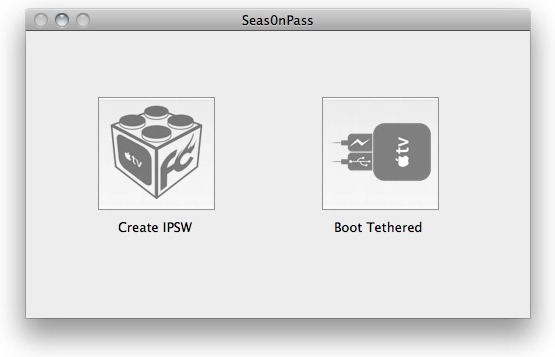
Step 3: After Seas0nPass completes the download of all the necessary files, connect the Apple TV to your computer with the micro USB Cable. Do not attach the power cable just yet.

Step 4: Place the Apple TV in DFU mode by pressing the ‘Menu’ and ‘Play/Pause’ buttons simultaneously for 7 seconds on your Apple TV remote.
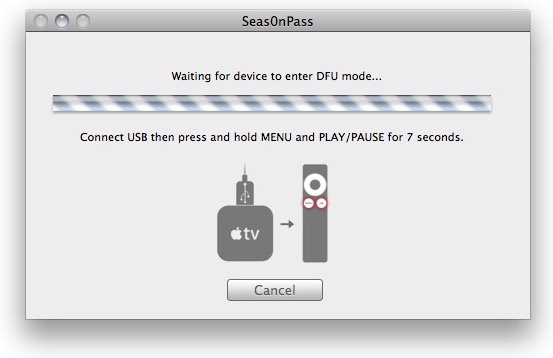
Step 5: Once iTunes restarts, confirm that a restore is in effect.
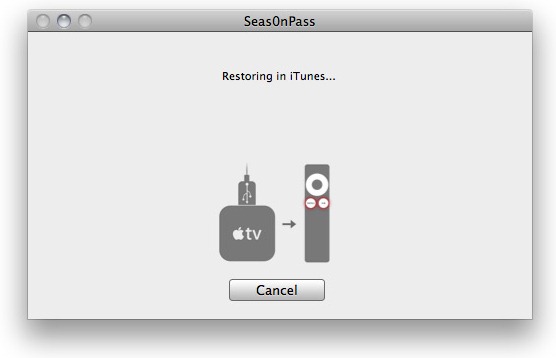
Step 6: You’re done! iTunes will confirm that the restoration process was successful.
Since this is a tethered jailbreak, following these additional steps will be necessary:
Step 1: Launch Seas0nPass and select the ‘Boot Tethered’ option.
Step 2: Connect your Apple TV with the micro USB cable once you receive the prompt. Remember, do not attach the power cable just yet.
Step 3: Once you see a rapid flashing light on your Apple TV, connect the power cable to the device.
Step 4: Place the Apple TV in DFU mode by pressing the ‘Menu’ and ‘Play/Pause’ buttons simultaneously for 7 seconds on your Apple TV remote.
Step 5: Once Seas0nPass completes in final tasks and reboots the Apple TV in the jailbroken state, disconnect the device.
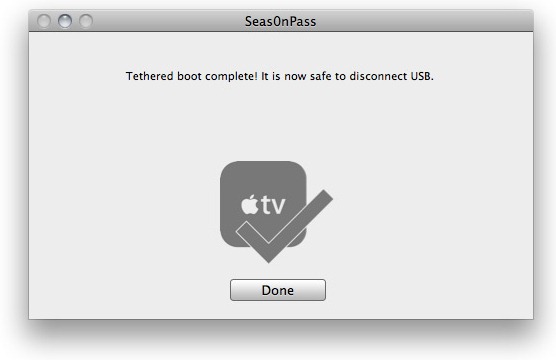
Step 6: Connect the Apple TV to your TV and voila! Have fun!
The reason I decided to jailbreak my Apple TV was to create a movie server. I had many movies I had downloaded throughout the years, saved on my computer that I would love to stream wirelessly to my HDTV.