Checking your bootrom First up, what is bootrom? iBoot or bootrom basically fires up when you are restoring your iPhone via iTunes. This makes sure that you are flashing a firmware which is greater or equal to the current version on the phone, and that it is genuine and legit (not custom). on Windows 7/Vista/XP Step 1: Put your iPhone into DFU Mode (not recovery mode) Note: Your iPhone screen at this time should be blank (black in color), if not, then you are most likely in Recovery Mode, not DFU mode. Step 2: Right Click on My Computer and click on: Properties -> Hardware (tab) -> Device Manager Step 3: Select the “+” to open submenus tree items for "Universal Serial Bus (USB) Controller". Step 4: Now look for "Apple Mobile Device USB Driver", right click and select Properties. Step 5: Go to "Details" and find "Device Instance ID". Step 6: Simply scroll through the string and you’ll find the bootrom version (iBoot) as shown in the screenshots below: Step 7: If it’s 359.3, you have old bootrom. If it’s 359.3.2 or anything above that, its a new bootrom. on Mac OS X Step 1: Put your iPhone into DFU Mode (not recovery mode) Note: Your iPhone screen at this time should be blank (black in color), if not, then you are most likely in Recovery Mode, not DFU mode. Step 2: Run "System Profiler" and navigate to: Hardware -> USB (menu on left). Step 3: At the top right under “USB Device Tree” panel click “Apple Mobile Device (DFU Mode)”. Step 4: Now down under in “Serial Number”, simply go through the string and you’ll find the bootrom version (iBoot) as shown in the screenshots below: Step 5: If it’s 359.3, you have old bootrom. If it’s 359.3.2 or anything above that, its a new bootrom. Note: In both the cases above, it doesn’t matter whether your iPhone is an MB model or an MC model. As long as it has 359.3 bootrom, it is iPhone 3GS with old bootrom, and if 359.3.2 or above then it is iPhone 3GS with new bootrom.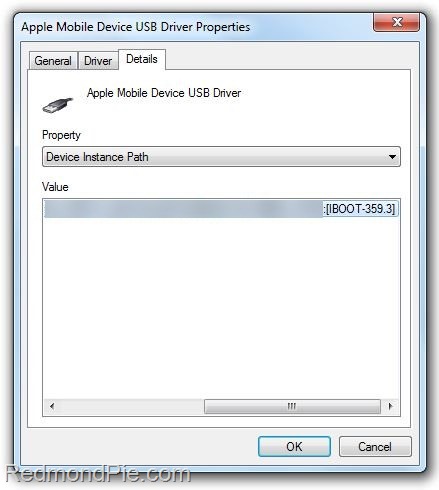 iPhone 3GS – Old Bootrom 359.3
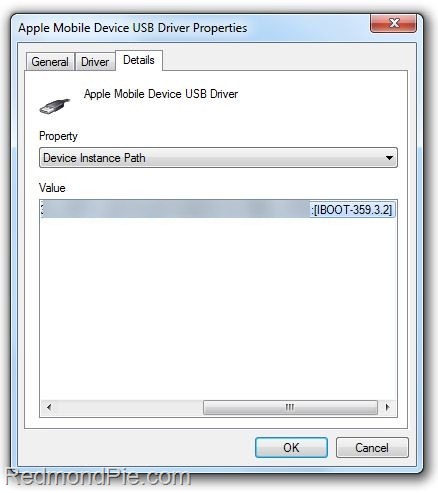 iPhone 3GS – New Bootrom 359.3.2
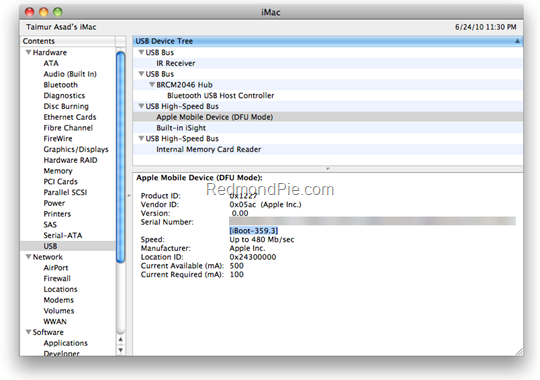 iPhone 3GS – Old Bootrom 359.3