iFaith works by backing up blobs from old firmwares, currently running on the device for later use, onto iFaith’s own remote server. That way you can upgrade your phone and just downgrade it later through iTunes, basically the way we’d do it before Apple introduced SHSH blobs, as long as the blob has been backed up.
iFaith allows users to visualize all backed up blobs, as well as build custom .ipsw’s using those blobs. Custom IPSW’s can then be used to restore the device using iTunes.
Follow the instructions posted below to save SHSH blob for any old firmware which is currently running on your iPhone, iPad, iPod touch using iFaith:
1. Download iFaith for Windows.
2. Start the program and click on ‘Dump SHSH Blobs’ button as shown in the screenshot below.
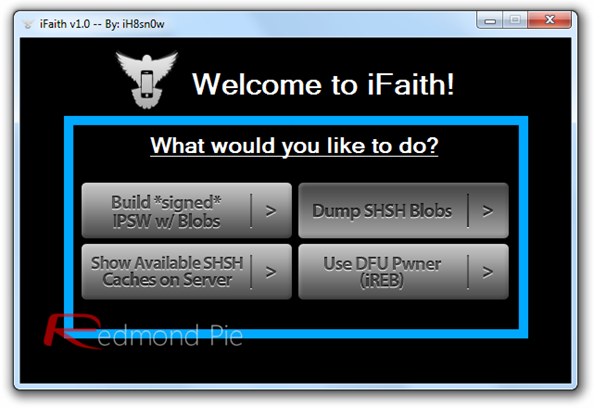
3. Hit the ‘Proceed’ button, followed by ‘Let’s Go!’ until the program asks you to enter DFU mode.
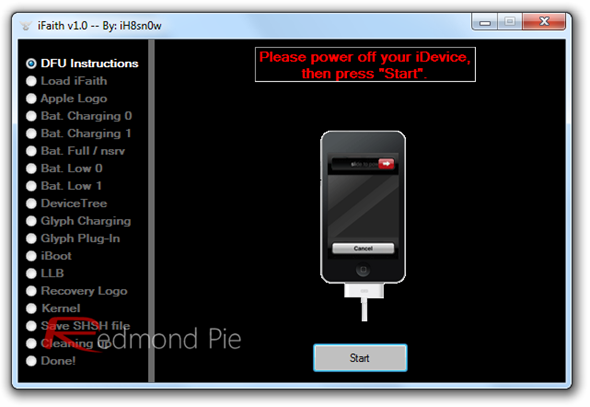
4. Follow the on-screen instructions to enter DFU mode:
- Hold Power and Home buttons for 10 seconds
- Now release the Power button but continue holding the Home button for 10 more seconds
- You device should now be in DFU mode
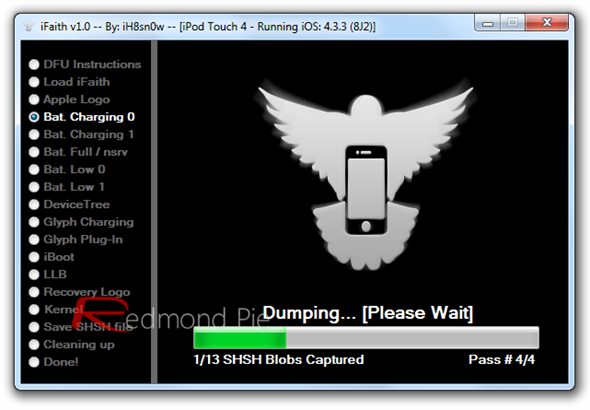
Once the DFU mode on the device is detected, iFaith will automatically start the process of dumping SHSH blob. This may take a while.
5. Once the process is completed, iFaith will ask you to save the SHSH blob on local disk.
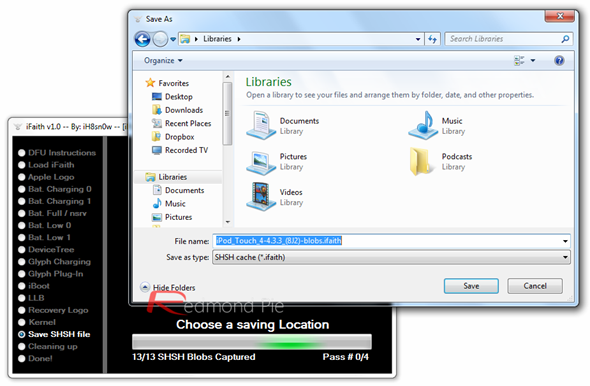
In addition to this, iFaith will also automatically save a copy of this file on its server.
That’s it! The SHSH blob for your iOS device has been backed up successfully for later use!