You will need:
- A supported device running iOS 5.0.1 [download link for iOS 5.0.1]
- The latest version of Sn0wbreeze (version 2.8b11) [download].
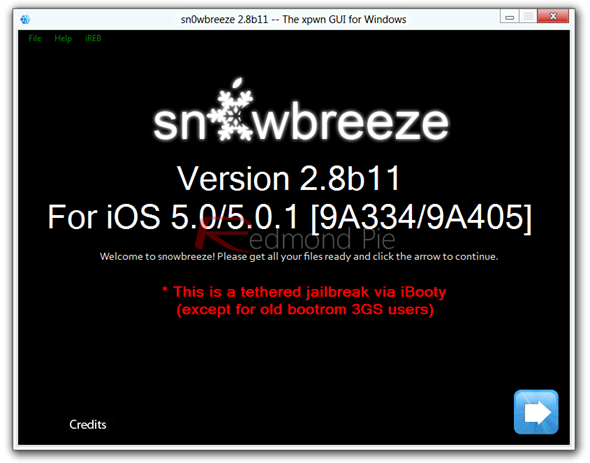
Step 1: Once you have downloaded your relevant iOS 5.0.1 IPSW, launch Sn0wbreeze. Click the blue arrow as depicted below.
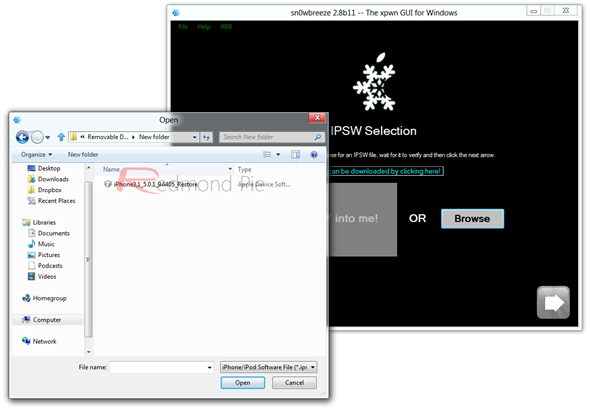
Step 2: Locate the downloaded IPSW fie for your iOS device and click that blue arrow once again.
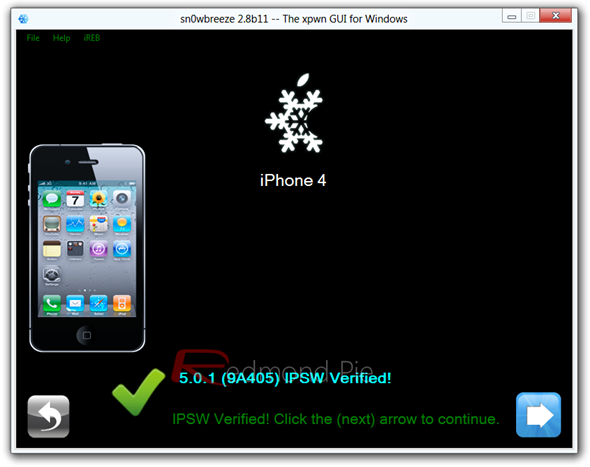
Step 3: Sn0wbreeze will now display your device’s details on a verification screen. Click the blue arrow, again.
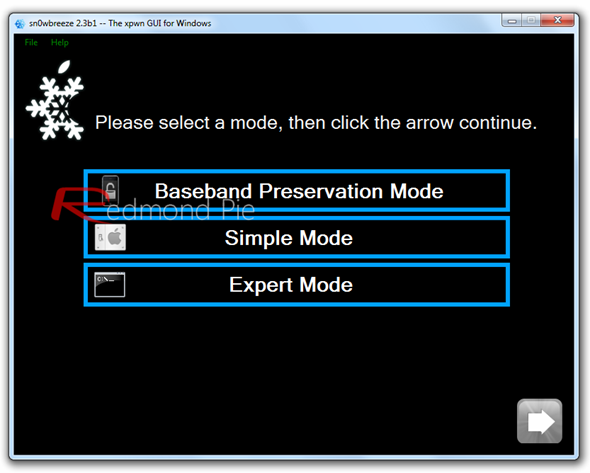
Step 4: Now, if you’re planning to preserve your iPhone’s baseband for Gevey SIM or Ultrasn0w unlock, opt for Expert Mode. Hit the arrow once again.
Step 5: On the next screen, select Build IPSW and click on the blue arrow once again.
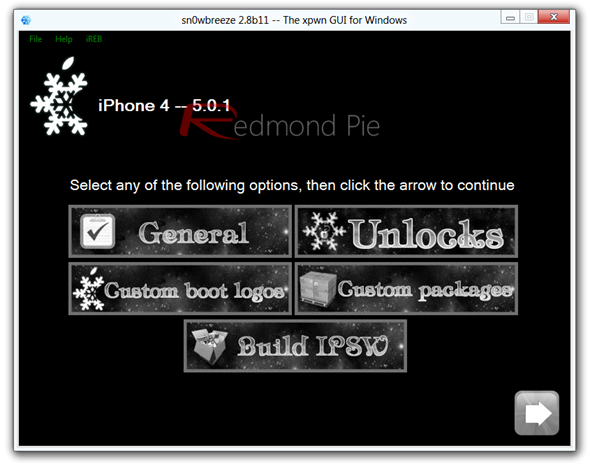
Sn0wbreeze will then pwn the iOS 5.0.1 IPSW file. It may take a while, but you’ll notified when the process is done.
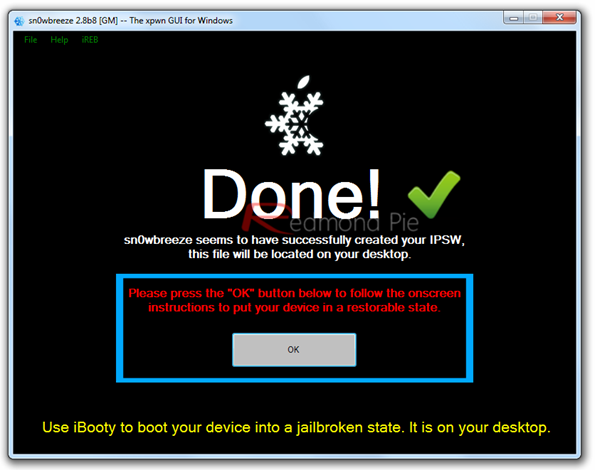
Step 6: Connect your device and hit OK, then follow the steps to slip your device into DFU mode. If all goes to plan, you’ll receive a confirmation prompt.
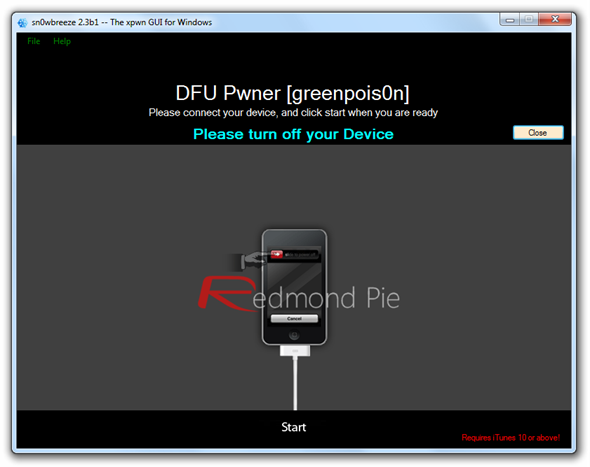
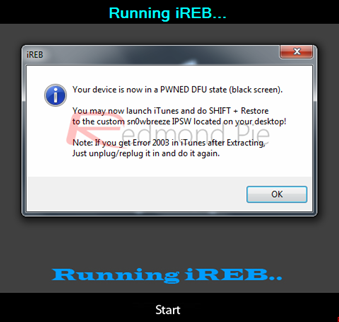
Step 7: Open iTunes, select your device in the list view, and while holding down the left Shift key on your keyboard, hit the Restore button, which will allow you to navigate to your custom firmware file which you created via Sn0wbreeze.

With the process complete, we now need to discuss how to boot tethered.
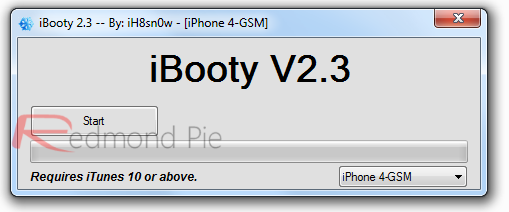
Step 1: Launch iBooty, which by default should be lying on your desktop, select your device and hitStart.
Step 2: Follow the on-screen instructions (if you need to – you may be a dab-hand by now) to enter your device into DFU mode.
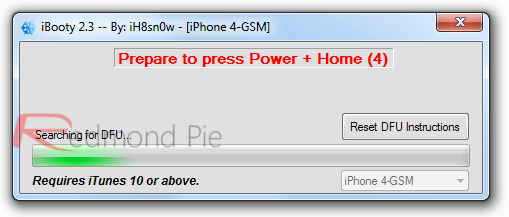
Step 3: iBooty will work its magic, and you will suddenly begin to see life on your device once again. Now you can head over to Cydia and install all your favorite apps and tweaks!