How to Update iPhone 3GS/3G to Baseband 06.15.00 on Mac
Steps 1
Download the stuff linked below:
- Download PwnageTool 4.1.3
- Download iOS 4.2.1: iPhone 3G, iPhone 3GS
- Download iOS 3.2.2 (required for baseband update)
Step 2
Open the downloaded PwnageTool.dmg and copy the PwnageTool.app to your desktop/any folder and execute it from there.
Hit the OK button.
Step 3
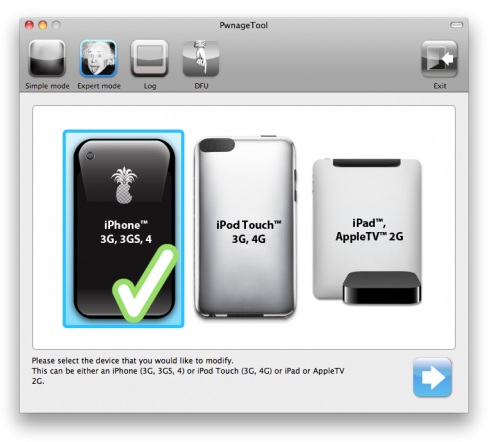
Now select Expert Mode from the top left side of the window.

and then select your iDevice. Hit the Next button.
Step 4
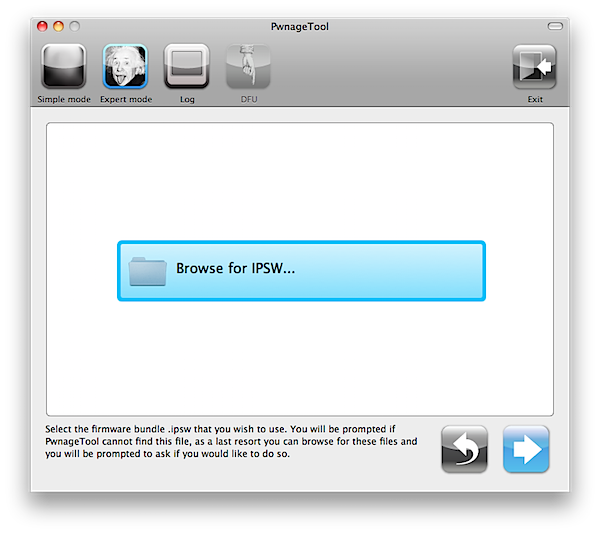
Now hit the Browse for IPSW button and select iOS 4.2.1/4.1 firmware for your device (downloaded from Step 1).
 You will now be asked if you want to update your baseband to 06.15.00. If you are on 05.14 or 05.15 or later and depend on unlock hit the OK button. If you do NOT need unlock hit No.
We strongly recommend you to read this before you continue.
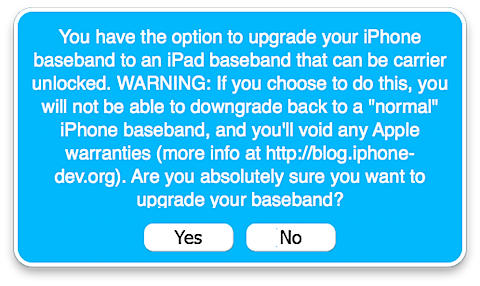
If you hit Yes, PwnageTool will once again ask you to Browse for IPSW. This time select the iPad iOS 3.2.2 IPSW.

Step 5
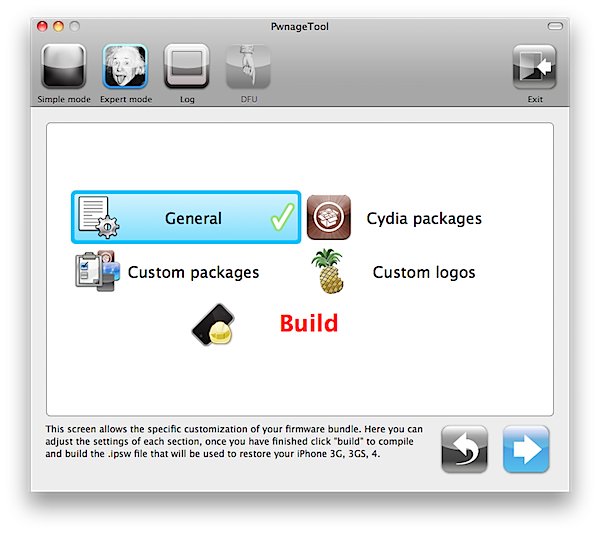
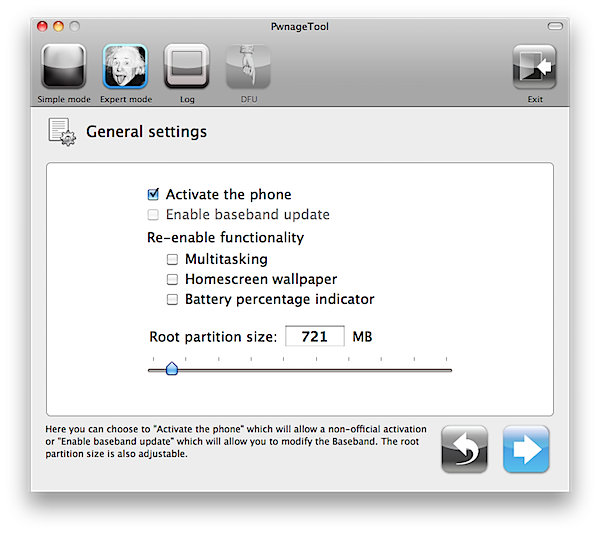
On next screen, Select General and hit the Next arrow button.
Step 6
* Select Activate the phone option if you’re on unofficial carrier.
* Do NOT select Activate the phone option if you’re on official carrier e.g. AT&T.
Step 7
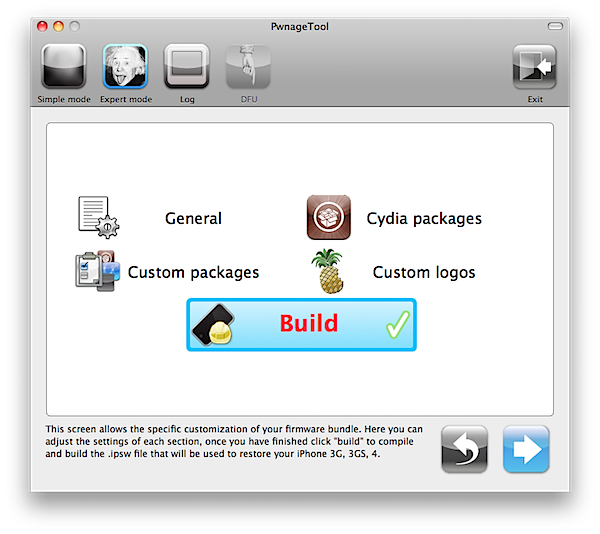
Keep hitting Next button until you’re back to the same screen where you selected General.


Now Select the Build Option and Hit Next.
PwnageTool will prompt you to select a destination folder to save custom iOS 4.2.1/4.1.
PwnageTool will start building your Custom IPSW.
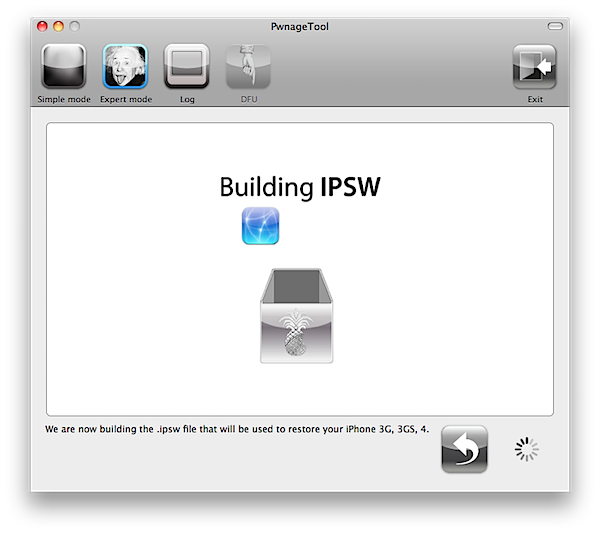
During the build process it’ll prompt you for your admin password.
Click No for a more thorough restore.

Step 8
Once the custom IPSW has been built, PwnageTool will ask you to connect your iDevice to your computer. Once your device is detected, you’ll be instructed to put your iDevice into DFU mode.
* Press and hold the power + home buttons for 10 seconds.
* Release the power button but continue holding the home button for 10 seconds.


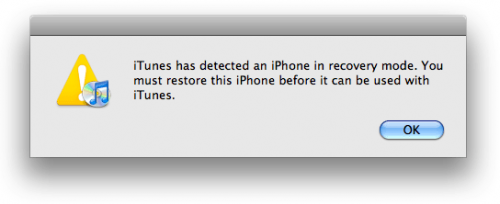
Once the iPhone/iPod Touch is in DFU mode, the follow popup message will appear. iTunes will also pop-up.
Step 9
In iTunes, hold the Alt/Option key and hit Restore. From the popup window, browse to the Folder where you saved custom iOS 4.2./4.1 and select you custom .ipsw file that you just created and click Open Button. (Make sure you’re selecting custom firmware, Not official one)
iTunes will now restore the firmware on your iPhone. This can take up to 10 minutes.
When done, you have successfully Jailbreak iOS 4.2.1/4.1 and with updated baseband 06.15.00 with PwnageTool 4.1.3. Now your iPhone is ready for unlock.